Document Management Module
Oh my, we've made it all the way to our Document Management! This one will inlcude some very familiar functionality, but also some new stuff. Let's have a look!
Overview and Navigating the tree
The Documents Module allows you to organize Documents and Templates.
All folders are displayed in a tree view - this one your most likely already familiar with, its just folders (and sub.folders (and sub-sub folders (and sub-sub-sub... you knwo how this goes))).
If you are not seeing the tree, just click on the grey button to expand it!
The most important distinction in our system lies between Documents and Templates. While documents are for example TD Documents with specific Product Data or QM Records, Tempaltes are just that - Templates. They don't hold any data, that just offer placeholders. This is also why we chose a filled out purple icon for our documents, and an empty one for our templates.
If you don't remember where your templates or documents are, you can just use the search bar.
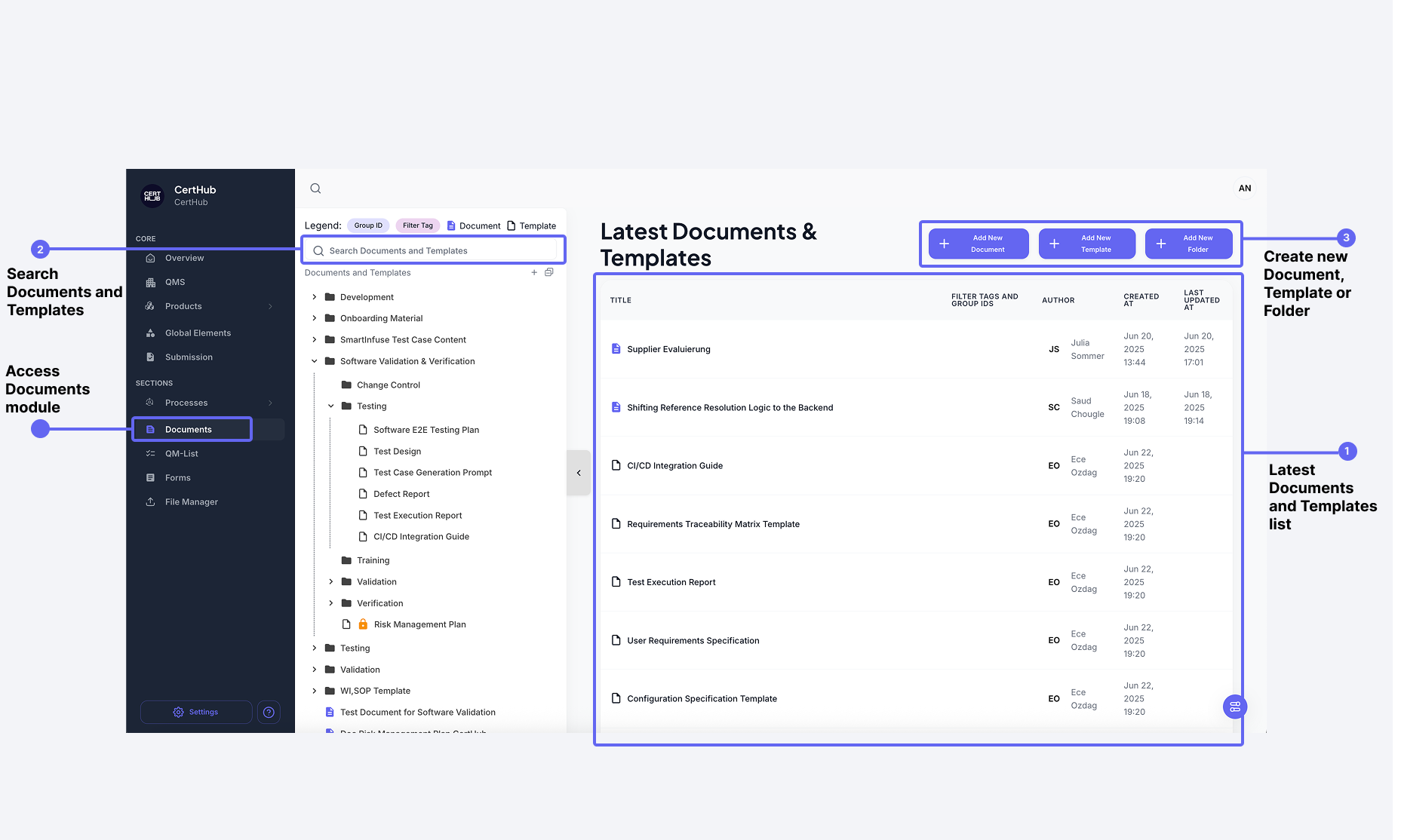
Search Functionality
By the way, if you haven't selected a doc/temp, you will see a list of "recently opened" docs/temps like in the image above.
Your sear will be matched by
- Folder name
- Document/Template name
- Abbreviations set for the specific Document/Template
Folder Actions
You can perform the following actions on folders:
- Create: Use the "+" icon at the top of the list or next to any folder to add new Folders, Documents or Templates.
- Rename: Use the ✏️ icon next to the folder to rename them.
- Delete: Use the 🗑️ icon to remove a specific folder permanently, along with all the items inside it. ⚠️: Folders containing locked or approved files cannot be deleted.
- Export as zip: Use the ⬇️ icon to download the folder. ⚠️: You will get a bunch of json files, to download the docs/temps as pdfs, please use the download button in the doc/temp.
- Create Submission: Use the ⬆️ icon to create a new submission out of the selected folder. ⚠️: A Submission will only contain approved documents (and no templates).
- Drag & Drop: Move folders into other folders freely.
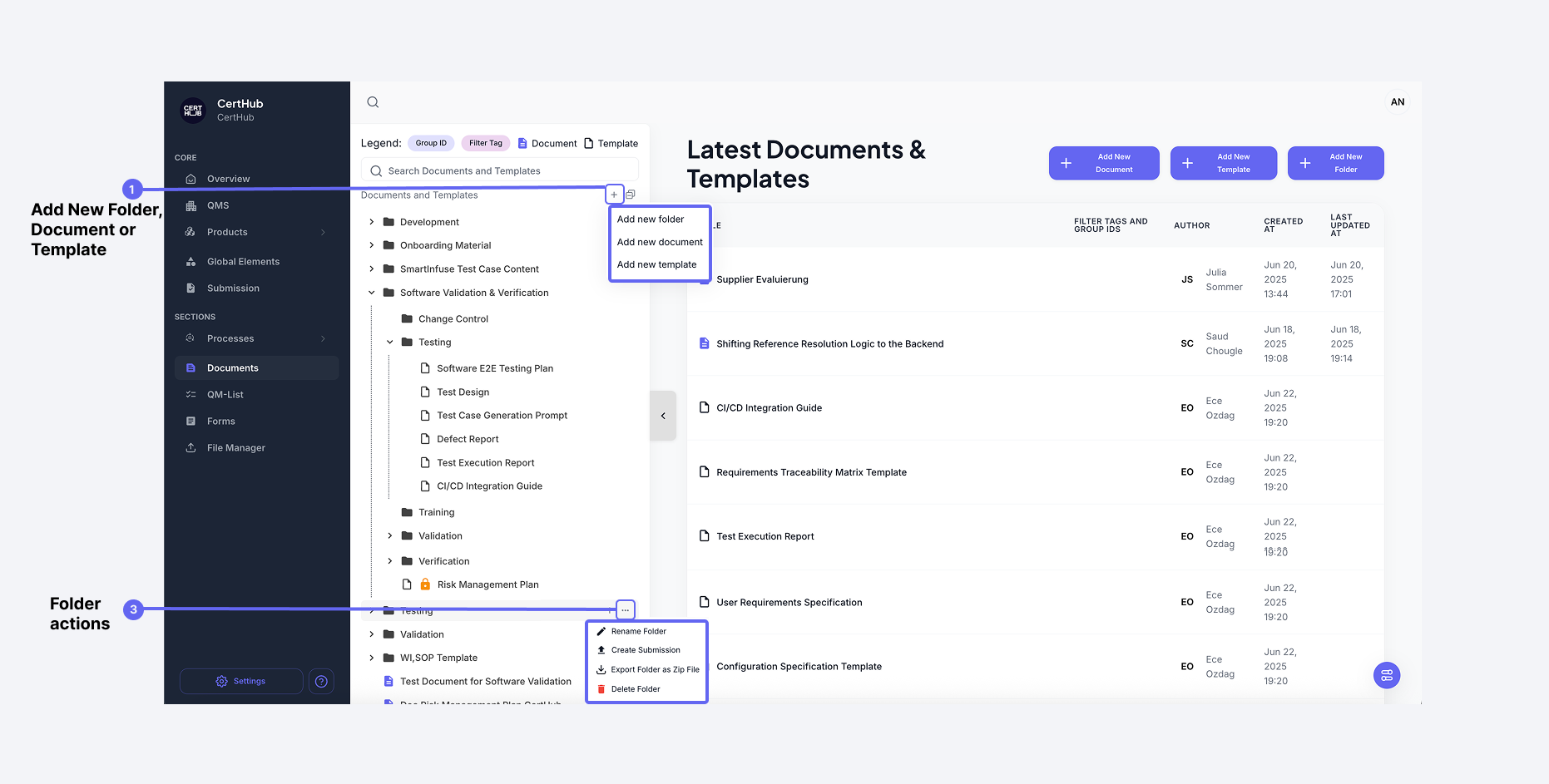
✅ Folders support unlimited nesting—organize as deeply as needed.
Document & Template Actions
You can manage documents and templates with the following actions:
- Duplicate
- Export
- Delete
- Drag & Drop between folders or subfolders
- Use clear, consistent naming to manage deeply nested folders.
- Rearrange using drag-and-drop for a clean and logical hierarchy.